
How to Fix Phone Screen Unresponsive Touch
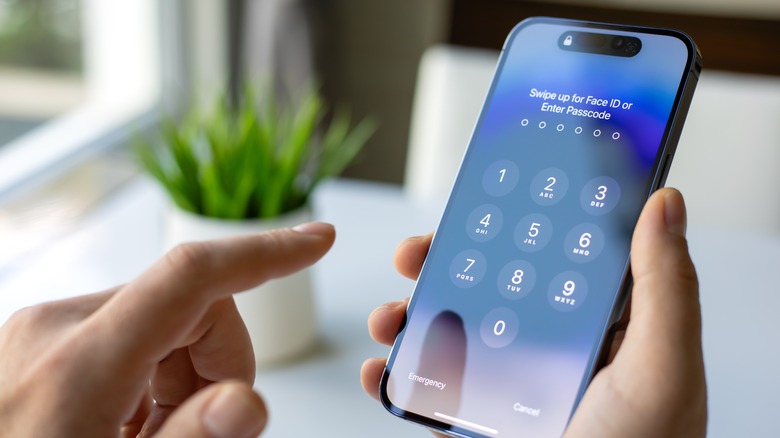
How to Fix Phone Screen Unresponsive Touch: Simple and Effective Solutions
Smartphones are an essential part of everyday life, but sometimes users face a frustrating issue when the screen stops responding to touch. If you are wondering how to fix phone screen unresponsive touch, you are not alone. This problem can happen on many devices such as phones running Android or iOS.
An unresponsive touchscreen can occur because of software glitches, dirt on the screen, or even hardware damage. The good news is that many cases can be fixed quickly at home without professional repair. In this guide, you will learn how to fix phone screen unresponsive touch using simple and safe methods.
Common Reasons for an Unresponsive Phone Screen
Before learning how to fix phone screen unresponsive touch, it helps to understand why the issue happens. Some of the most common causes include:
- Dirt, dust, or moisture on the screen
- Temporary software glitches
- Too many apps running in the background
- Screen protector interference
- System update problems
- Physical damage or internal hardware issues
Once you identify the possible cause, it becomes easier to apply the right solution.
1. Restart Your Phone
One of the easiest ways to solve touchscreen issues is to restart your device. Temporary system bugs often cause the screen to freeze or stop responding.
To restart your phone:
- Press and hold the power button.
- Tap Restart or Reboot.
- Wait for the phone to turn back on.
Restarting refreshes the system and may instantly fix the problem.
2. Clean the Screen Properly
Sometimes the touchscreen stops responding because of dirt, oil, or water droplets. Cleaning the display is a simple step when learning how to fix phone screen unresponsive touch.
Tips for cleaning your screen:
- Turn off the phone first.
- Use a soft microfiber cloth.
- Gently wipe the screen to remove fingerprints or dust.
- Avoid using harsh chemicals.
A clean surface allows the touchscreen sensors to work properly.
3. Remove the Screen Protector
A damaged or poor-quality screen protector can interfere with touch sensitivity. If your phone has a protector installed, try removing it temporarily.
After removing it, test the screen again. If the touch works normally, the protector was likely the cause.
4. Close Background Apps
Running too many apps can slow down the system and affect touchscreen performance. Clearing unused apps may help.
Steps to try:
- Open the Recent Apps menu.
- Close all unnecessary applications.
- Restart the phone afterward.
This helps free up system memory and improves responsiveness.
5. Update the Phone Software
Software bugs can sometimes cause touchscreen problems. Updating your system can fix these issues.
On devices running Android or iOS, updates often include bug fixes and performance improvements.
To check for updates:
- Open Settings.
- Tap Software Update.
- Download and install any available updates.
Keeping your phone updated helps prevent many common problems.
6. Perform a Force Restart
If the screen is completely frozen, a normal restart may not work. In that case, a force restart can help.
Although the button combination varies by device, it usually involves holding the power button and volume button together for several seconds until the phone restarts.
This method resets the system without deleting your data.
7. Reset Your Phone (Last Option)
If none of the above methods solve the issue, a factory reset may be necessary when trying to understand how to fix phone screen unresponsive touch.
Important: Always back up your data first.
Steps:
- Go to Settings.
- Tap System.
- Select Reset or Factory Reset.
This restores the phone to its original settings and removes software conflicts.
8. Check for Hardware Damage
If your phone screen still does not respond, the problem may be hardware related. A cracked display, water damage, or internal component failure can affect touchscreen functionality.
In this case, the best option is to visit an authorized repair center or a professional technician.
Tips to Prevent Touchscreen Problems
Once you know how to fix phone screen unresponsive touch, it is also helpful to prevent the issue in the future.
Helpful tips include:
- Keep the screen clean and dry
- Use a high-quality screen protector
- Avoid dropping the phone
- Install software updates regularly
- Do not overload the phone with unnecessary apps
Taking good care of your device can reduce the risk of touchscreen issues.
Conclusion
Learning how to fix phone screen unresponsive touch can save you time, money, and frustration. In many cases, the issue can be solved with simple steps such as restarting the phone, cleaning the screen, removing a faulty screen protector, or updating the software.
However, if the problem is caused by hardware damage, professional repair may be necessary. By following the tips in this guide, you can quickly diagnose the problem and get your phone working smoothly again.
FAQ
Why is my phone screen not responding to touch?
A phone screen may stop responding because of software glitches, dirt on the display, a damaged screen protector, or internal hardware problems.
Can restarting the phone fix touchscreen problems?
Yes. Restarting clears temporary system errors and is often the quickest way to fix an unresponsive screen.
Does water affect touchscreen performance?
Yes. Moisture can interfere with touch sensors and make the screen behave incorrectly.
When should I replace my phone screen?
If the screen is cracked, physically damaged, or still unresponsive after trying all troubleshooting steps, replacing the display may be necessary.